Change Your Resolution
This site is optimized for a 1024x768 resolution. If you are using any other resolution on your computer's screen, objects on the site may appear offset.
Screen resolution refers to the clarity of the text and images on your screen. At higher resolutions, items appear sharper. They also appear smaller, so more items fit on the screen. At lower resolutions, fewer items fit on the screen, but they are larger and easier to see. At very low resolutions, however, images might have jagged edges.
For example, 640 × 480 is a lower screen resolution, and 1600 × 1200 is a higher one. CRT monitors generally display a resolution of 800 × 600 or 1024 × 768. LCD monitors can better support the higher resolutions. Whether you can increase your screen resolution depends on the size and capability of your monitor and the type of video card you have.
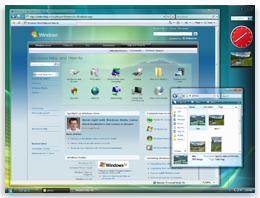 Text
and images are sharper and smaller at high screen
resolutions
Text
and images are sharper and smaller at high screen
resolutions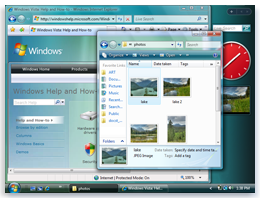 Text
is larger and easier to read at low screen resolutions,
but images are blocky and fewer items fit on the screen
Text
is larger and easier to read at low screen resolutions,
but images are blocky and fewer items fit on the screen-
Open Display Settings by clicking the Start button
 ,
clicking Control Panel,
clicking Appearance and
Personalization, clicking
Personalization, and then clicking
Display Settings.
,
clicking Control Panel,
clicking Appearance and
Personalization, clicking
Personalization, and then clicking
Display Settings. -
Under Resolution, move the slider to the resolution you want, and then click Apply.

Notes
-
When you change the screen resolution, it affects all users who log on to the computer.
-
When you set your monitor to a screen resolution that it won't support, the screen will go black for a few seconds while the monitor reverts back to the original resolution
